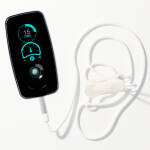
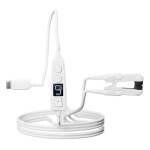
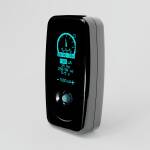





Last week we shipped something we've been working on quietly for a while. You can now open a browser tab, connect your Vagal Buddy over Bluetooth, and let Claude -- Anthropic's AI -- control your stimulation session through a conversation.
Not through a menu. Not through sliders. Through natural language. You say "start my recovery session at 30 Hz and 0.8 mA for 20 minutes" and Claude sets the frequency, sets the current, and starts the session. If you want to change something mid-session, you ask. If you want to know what your current settings are, you ask that too.
This is a Research Edition feature, available now through something we're calling the BLE Bridge.
Why Conversational Control Matters
We've already given people powerful tools for controlling their stimulation. The Vagal Tones app handles tone loading and basic device management. The Vagal Tone Portal gives clinicians and researchers full parameter control with direct wireless deployment. These tools work. They solve real problems.
But there's a gap between having access to parameters and knowing what to do with them. The Buddy's BLE interface exposes frequency, pulse width, interphase interval, duty cycle, waveform mode, current, session duration, anti-habituation, and more. That's a lot of knobs. A researcher who has read the literature on 25 Hz versus 100 Hz stimulation knows exactly which one to set and why. Someone who just wants to try a vagal recovery session after a hard workout does not.
An AI sitting between the person and the device can bridge that gap. You describe what you want in plain language. The AI translates that into specific parameter values. The device does what you asked. You don't need to know that "recovery session" means a particular combination of frequency, current, and duration -- you just need to know what you're trying to accomplish.
And for researchers, conversational control means something different: speed. Instead of navigating through a portal interface to set up a protocol, you describe the protocol and Claude configures it. "Set symmetric biphasic at 25 Hz, 200 microsecond phase, 0.5 mA, 30 seconds on, 30 seconds off, for 60 minutes." One sentence, six parameter changes.
How the BLE Bridge Works
The architecture is simpler than it sounds. There are three pieces: your Buddy, a web page, and Claude.
The BLE Bridge is a page on vagal.com that uses Web Bluetooth -- a browser API that lets websites talk to Bluetooth devices directly. You open the page in Chrome, click Connect, and pair your Buddy. The page reads your device's current state and starts streaming telemetry to a worker on our server every three seconds: current settings, device status, battery level, session state.
That worker implements the Model Context Protocol -- MCP -- which is the standard Anthropic built for connecting Claude to external tools. It's the same protocol Claude uses to connect to Google Drive, Slack, Gmail, and other services. Your stimulator becomes another tool in that ecosystem, no different from a calendar or a spreadsheet.
The bridge page gives you a personal MCP server URL. You paste that into Claude's settings as a connector (Settings > Connectors in claude.ai), and from that point on, Claude can see your device. It can read your current frequency, your intensity, whether a session is running, what waveform you're using, how long you've been stimulating. And it can send commands back: change parameters, start sessions, stop sessions, switch tones.
The commands flow from Claude to the worker, the worker queues them, the bridge page polls for them and executes them on the device over Bluetooth, then acknowledges the result back. The whole loop takes about a second.
The Safety Architecture
This is the part we spent the most time on, and it's the reason this took longer to ship than the underlying technology required.
When you connect your device on the BLE Bridge page, you'll see a Safety Settings panel. It has two sections: what AI can control, and what your limits are.
The permission toggles let you decide exactly which categories of action Claude is allowed to take. You can allow or disallow intensity changes, frequency changes, tone switching, and session start/stop independently. If you turn off "Start and Stop Sessions," Claude can adjust your parameters all day long but cannot begin or end stimulation -- you do that yourself.
The limits section sets hard ceilings. Maximum intensity (on a scale of 1-15), maximum session length (in minutes), and maximum current (in milliamps). These limits are enforced at the worker level -- not by Claude, not by a prompt, but by the server that sits between Claude's commands and your device. Claude literally cannot exceed what you allow, because the worker will reject any command that violates your configured limits. The bridge page shows blocked commands in its activity log with a clear count, so you can see exactly when and why something was refused.
We made this decision early on: safety enforcement has to happen outside the AI. Prompt engineering is not a safety mechanism. A well-written system prompt can guide Claude's behaviour, and Claude is genuinely careful with medical devices, but the hard limits need to be structural. The worker checks every command against your settings before it touches the device. Full stop.
There's also a manual Stop Stimulation button on the bridge page itself, independent of Claude. If anything feels wrong, you press it. It uses the same state machine as the AI command path but doesn't depend on Claude being connected or responsive.
What a Session Actually Looks Like
You open the BLE Bridge page in Chrome. Connect your Buddy. Set your safety limits if the defaults don't suit you. Copy the MCP URL and add it as a connector in Claude. This takes about two minutes the first time and about thirty seconds after that, because the connector persists.
Then you open a conversation with Claude and start talking.
You might say something simple: "Start a 20-minute session at my usual settings." Claude reads your device's current parameters, confirms them, and starts the session. You might say something specific: "I want to try alternating biphasic at 10 Hz with a 300 microsecond phase duration, 0.6 mA, for 45 minutes." Claude sets each parameter, confirms the values back to you, and starts the session.
During the session, you can ask Claude what's happening: "What's my current intensity?" "How long have I been stimulating?" "What waveform am I using?" Claude reads the live telemetry and answers.
You can make changes: "Increase the current by 0.1 mA." "Switch to symmetric biphasic." "Extend the session by 10 minutes." Claude sends the commands, verifies they were applied, and confirms.
You can also ask questions that go beyond device control. Claude has access to the research literature on vagus nerve stimulation. You can ask it why a particular frequency is used for a particular application, what the evidence says about pulse width and nerve fibre recruitment, or how duty cycle affects habituation. The conversation can move fluidly between controlling your device and understanding the science behind what you're doing.
When you're done, you say "stop the session" or let it run to its programmed duration. After you disconnect, the bridge page optionally asks you to rate the experience and leave feedback, which feeds directly back to us.
What Claude Can Actually Do
Through the MCP connector, Claude has access to the full range of Buddy's BLE characteristics. In practical terms, this means:
It can set the target current in microamp precision -- so when you say "0.8 milliamps," Claude writes 800 to the target current characteristic. It can set the pulse frequency anywhere the device supports. It can set the phase duration and interphase interval in microseconds. It can switch between the four waveform modes: symmetric biphasic, alternating biphasic, asymmetric biphasic, and monophasic. It can configure the duty cycle -- how many seconds of stimulation followed by how many seconds of rest -- independently for each of the device's three tone slots. It can set session duration, including continuous mode for open-ended sessions. It can enable or disable modes like anti-habituation, blind mode, and sham mode. It can start ear impedance tests, start sessions through the full state machine (ear test, clip detection, session activation), and stop sessions cleanly.
It can also read all of these values back, plus battery level, actual delivered current, time since session start, and total lifetime session count.
Every parameter change goes through the safety layer first. If you've set a maximum current of 1.0 mA and Claude tries to set 1.5 mA -- whether because you asked for it or because Claude calculated it as part of a protocol -- the worker blocks it and Claude gets an error response explaining why.
The Research Angle
We built this for everyone with a Research Edition, but the use case that motivated it was research.
Running tVNS studies involves precise, repeatable protocols. A researcher needs to set exact parameters, maintain them for exact durations, and document exactly what happened. Doing that through a phone app or web portal works, but it's manual. Someone has to tap through the interface for every parameter, every time.
With Claude, a researcher can describe a protocol in natural language and have it configured in seconds. More importantly, the conversation itself becomes documentation. Claude confirms every parameter it sets, reports the device's response, and logs the session. The chat transcript is a record of exactly what was done, when, and what the device reported back.
For studies using sham stimulation -- where some participants receive real stimulation and others receive a convincing placebo -- Claude can configure sham parameters (minimum current, ramp time, max current duration) just as easily as active parameters. Combined with the device's blind mode, which hides the intensity display, this enables double-blinded protocols configured entirely through conversation.
And because the MCP protocol is an open standard, Claude isn't the only AI that can do this. Any MCP-compatible client can connect to the same worker URL. The bridge page itself mentions that it works with Claude, ChatGPT, or any MCP client. We built it on an open standard deliberately, so researchers aren't locked into one AI provider.
What You Need
A Vagal Buddy with the Research Edition upgrade (or the Research Edition digital upgrade, which you can activate instantly on an existing device). Chrome on a laptop or desktop -- Web Bluetooth requires it. Edge and Bluefy (an iOS browser) support Web Bluetooth and should work, but Chrome is what we've tested most thoroughly. A Claude account with connector support.
Keep the BLE Bridge tab open while Claude works. It's the live Bluetooth relay between Claude and your device. If you close the tab, the Bluetooth connection drops and Claude loses access. A running session will continue on the device -- closing the bridge doesn't stop stimulation -- but Claude won't be able to monitor or adjust it until you reconnect.
What's Next
This is the first version. We're already working on HRV monitoring integration, so Claude can see your heart rate variability in real time alongside your stimulation parameters. The goal is a closed loop: Claude adjusts your stimulation based on how your body is actually responding, not just based on what you asked for.
We're also looking at protocol libraries -- pre-built stimulation programs that Claude can reference and deploy, so you can say "run the anxiety protocol from the Badran 2018 paper" and Claude knows exactly what parameters that means.
But right now, today, you can connect your Buddy to Claude and control your stimulation through conversation. If you have the Research Edition, try the BLE Bridge.
Questions about the BLE Bridge or Research Edition? Get in touch -- we're happy to help you get set up.